Build your first funnel in Flow Builder
A practical walkthrough of Mtschat’s Flow Builder — the five block types, a complete lead-magnet funnel, the pre-publish check and version history.
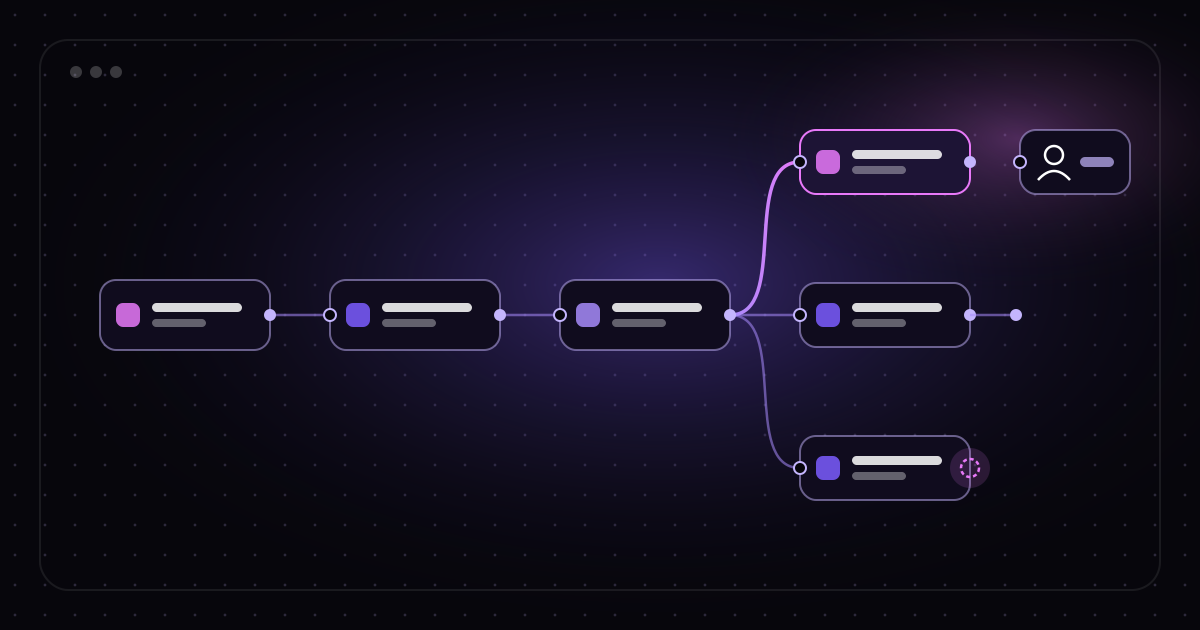
Templates get you started. Flow Builder is where you make an automation your own. It’s a drag-and-drop canvas where you connect blocks into a conversation: what to say, what to ask, what to do with the answer, and when to bring in a person.
In this guide we’ll cover each block type, then build a complete funnel step by step: a lead magnet delivered from a comment, a qualification question, tagging based on the answer, and a hand-off to your team for the people who want to talk. Finally, we’ll look at the checks to run before publishing and how version history protects you when you change things later.
The building blocks
Every flow in Mtschat is made from five kinds of blocks. Once you know what each does, you can build nearly any conversation.
Messages
A message block sends text to the contact — a greeting, a link, an answer. Keep each message focused on one thing. Two short messages usually read better than one long one.
Buttons
Buttons give the contact choices. Each button has its own output on the canvas, so you can connect “Yes” to one path and “Not yet” to another. Buttons also matter on Instagram for another reason: a tap opens or resets the 24-hour messaging window, which keeps the conversation going.
Conditions
A condition block checks something about the contact and sends them down different paths. For example: does this contact already have the tag “customer”? If yes, skip the sales pitch; if no, continue.
Delays
A delay block waits before the next step — a few minutes, a few hours. Use delays to space out a follow-up, not to hold back what someone asked for. And keep the total delay inside Instagram’s 24-hour window, or the next message won’t be deliverable. Our explainer on the 24-hour window covers why.
Tagging actions
A tagging action adds or removes a tag on the contact. Tags are how a flow remembers what it learned. They appear in Contacts, they power segments and broadcasts, and they travel to connected tools such as HubSpot or Mailchimp if you’ve set up an integration.
The funnel we’re building
Here’s the scenario. You run a small design studio and you’ve written a free guide: “10 fixes for a slow-loading website”. You want to:
- Deliver the guide to anyone who comments GUIDE on a Reel.
- Ask one question to understand who they are.
- Tag them based on the answer.
- Offer a conversation with your team to people who might need help — and hand those people to a human.
We’ll build this on top of the comment-to-DM template, so the trigger, public reply and first DM are already in place. If you haven’t used it before, read the comment-to-DM guide first.
Step-by-step: building the funnel
Step 1: Start from the template
Create a new automation from “Auto-DM links from comments” and open it in Flow Builder. You’ll see the trigger (a comment containing your keyword), the public reply, and a message with a button. Set the keyword to GUIDE and pick the Reel it should watch.
Step 2: Write the opening DM
Edit the first message:
Thanks for commenting! Tap below and I’ll send you the guide.
Label the button “Send me the guide”. When the contact taps it, the 24-hour window opens and the flow continues.
Step 3: Deliver the lead magnet
Connect the button’s output to a new message block:
Here’s your copy of “10 fixes for a slow-loading website”: [link]
Deliver first, always. The contact asked for the guide; give it to them before you ask for anything.
Step 4: Ask the qualification question
Add a second message directly after the delivery, with buttons:
Quick question so I can send you the right tips — which best describes you?
- “I run my own site”
- “I build sites for clients”
- “Just curious”
Three options is plenty. Each one becomes its own output on the canvas.
Step 5: Tag each answer
Connect each button to a tagging action:
- “I run my own site” → tag site-owner
- “I build sites for clients” → tag freelancer
- “Just curious” → tag browsing
Now every contact who answers carries a tag you can use later — for a segment, a broadcast or an integration.
Step 6: Branch the follow-up
After each tag, add a short message tailored to the answer.
For freelancer and browsing, a simple close:
Enjoy the guide. Reply here anytime if you have a question.
For site-owner, the people most likely to want help, add an offer with buttons:
Want us to take a quick look at your site? A real person from our team can reply here.
Two buttons: “Yes, please” and “Not right now”.
Step 7: Hand off to a human
Connect “Yes, please” to a tagging action that adds wants-review, then to a final message:
Great — someone from the team will reply here shortly.
Set a routing rule in the Team Inbox so conversations tagged wants-review go to the right teammate. They’ll see the full history — the comment, the guide, the answers — and can pick up the conversation without asking anything twice. Because the contact just tapped a button, the window is fresh; aim to reply well within it.
Connect “Not right now” to a short, friendly close.
Step 8: Optional follow-up with a delay
If you want one gentle check-in for the site-owner path, add a delay of a few hours after the close, then a message: “Did the guide help? Happy to answer questions.” Keep it to one. Staying inside the window and not over-messaging matter more than squeezing out another touchpoint.
Checking for loose ends before you publish
When you click publish, Flow Builder checks the flow for loose ends — outputs that aren’t connected to anything, such as a button that leads nowhere. A loose end means a contact can tap something and get no response, which is the fastest way to lose their trust.
Fix every flagged item before publishing. Beyond what Flow Builder catches automatically, run through this list yourself:
- Every button has a destination. Including the “no” and “not now” options.
- Links work on mobile. Open each one on your phone.
- Delays fit the window. Add up the waiting time on each path.
- Tags are spelled consistently. “site-owner” and “site_owner” are two different tags.
- The hand-off is staffed. Someone is actually going to see conversations routed to the inbox.
- You’ve tested it end to end. Comment the keyword from a second account and tap through each path.
Version history
Once your funnel is live, you’ll want to improve it — reword the question, add an option, try a different offer. Flow Builder keeps a version history every time you publish, so you can make changes without worrying about breaking something that works.
If a new version performs worse, or you introduce a mistake, open the history and restore an earlier version. A few habits make this more useful:
- Change one thing per version. If you rewrite the question and the offer at the same time, you won’t know which made the difference.
- Give changes time. Wait for enough runs before judging a new version.
- Note what you changed and why. Future you will thank present you.
Measuring the funnel
Insights shows runs, link clicks, click-through rate and recorded conversions for the automation. For this funnel, also look at your tags in Contacts: how many people answered the question, how the answers split, and how many reached wants-review. Those numbers tell you whether the question is worth asking and whether the offer resonates. For a fuller approach, see measuring Instagram DM performance.
Where to go from here
The same pattern — deliver, ask, tag, route — works for almost any offer: a recipe, a discount code, a waitlist, a webinar. Start with this structure, change the words, and publish. Flow Builder is included on every Mtschat plan, including Free; see the Flow Builder page for a closer look.